PrimaryAI from setup to daily use
This guide walks through the core workflow: setting up your teaching profile, planning your timetable, generating lesson packs, capturing ideas in Notes, and managing your resources.
Quick start
Set up your teaching profile
Go to Settings and add your year group, class notes, attainment split, and any SEND or EAL context. The more specific you are here, the more relevant everything generated for you will be.
Plan your week in the scheduler
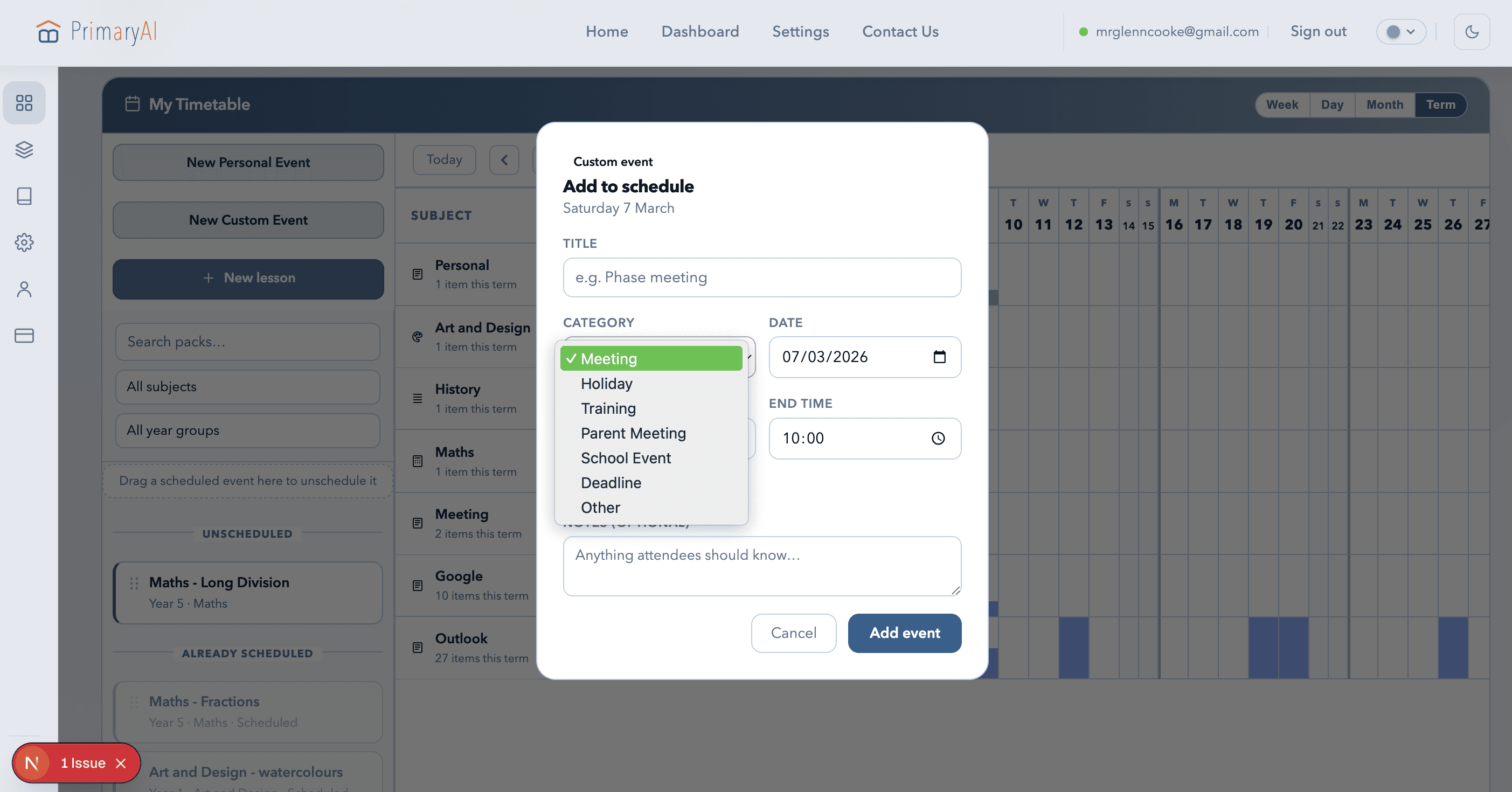
Use the Dashboard scheduler to map out your teaching week. You can add events manually or use the AI Planner to generate a draft schedule from a rough description or curriculum document.
Generate your first lesson pack
Open the Lesson Pack Generator, pick your year group, subject, and a focused topic. Optionally upload a planning document. Review the draft carefully — objectives, activities, SEND notes, and assessment questions.
Save and organise in the Library
Save any lesson pack you want to reuse. Use folders to separate long-term curriculum resources from day-to-day materials. Attach packs directly to schedule events to keep everything linked.
Use Notes to capture ideas as you work
Notes lives across the whole app. Jot down lesson ideas, observations, or planning thoughts as they come. Attach notes to specific lesson packs or schedule events so context stays where you need it.
What's inside this guide
Section 1
🗓️ Dashboard and weekly view
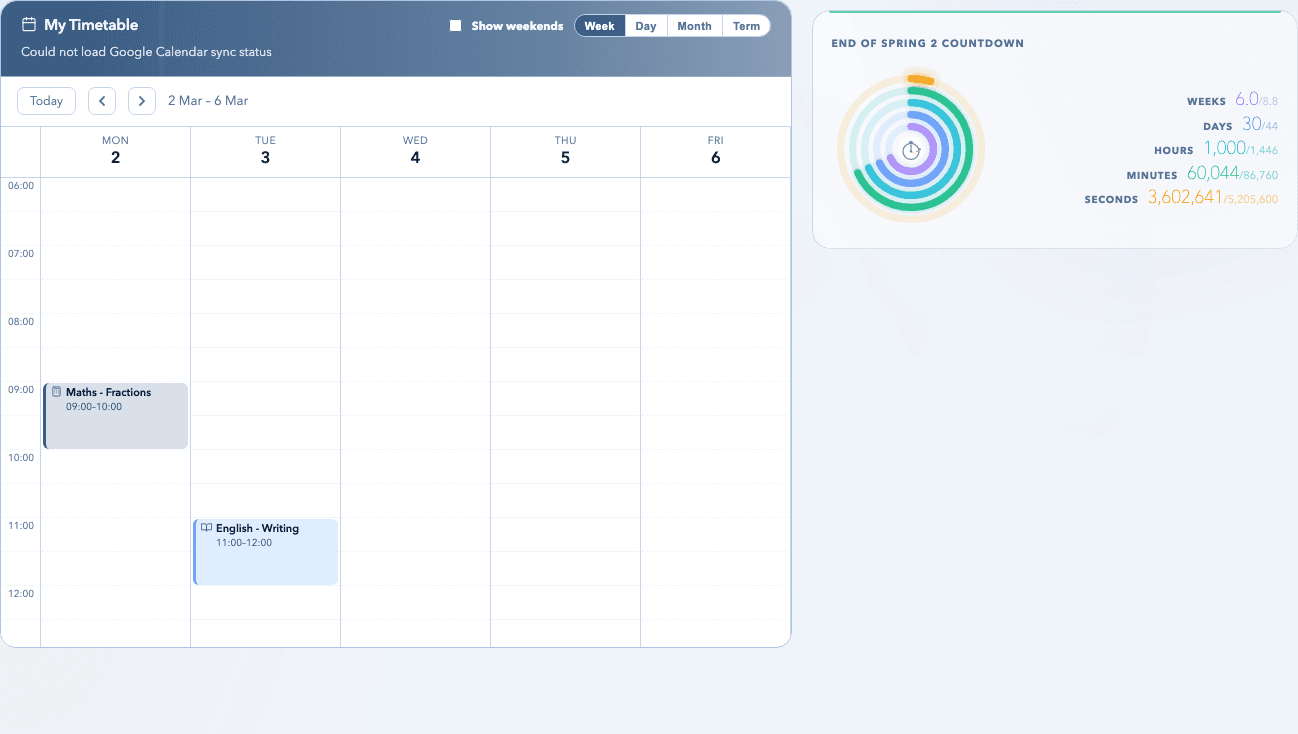
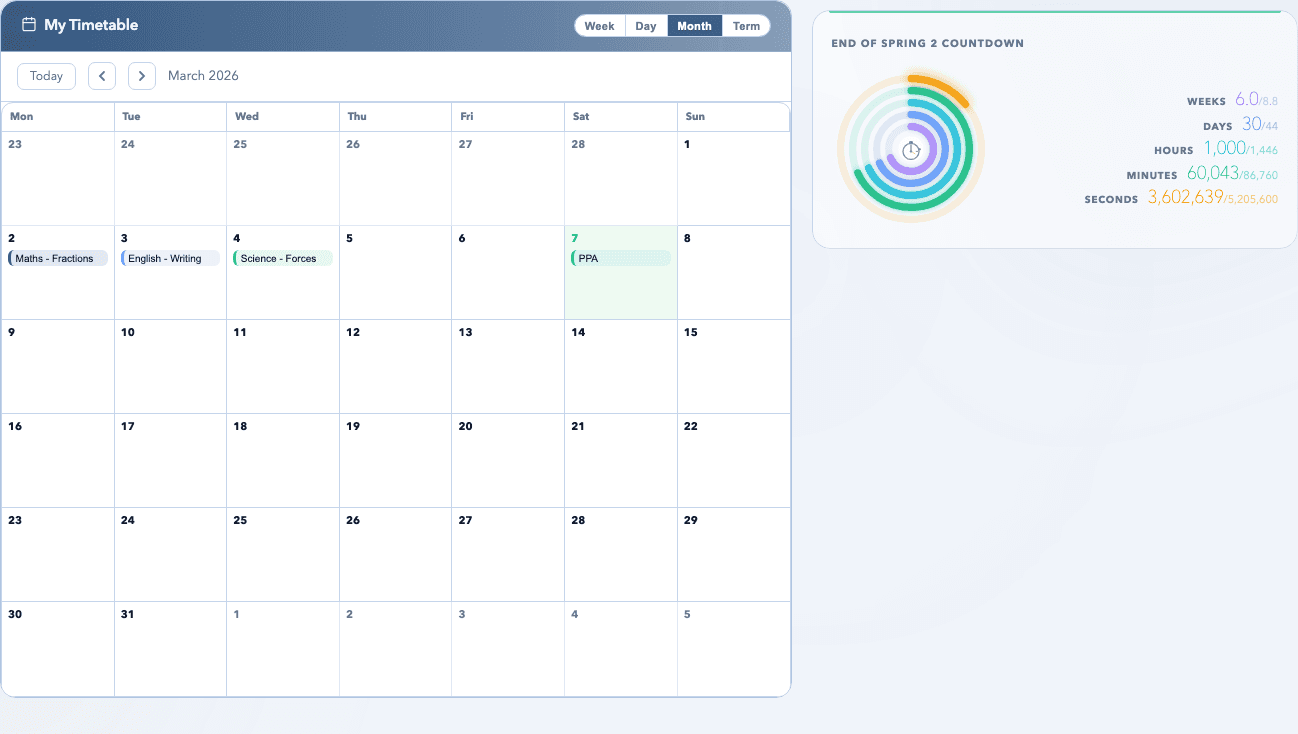
The dashboard is your daily starting point. It shows your timetable for the week, gives you quick access to AI planning tools, and surfaces what needs attention today. Start here before opening anything else.
- Check your week view before generating anything new — avoid duplicating lessons you already have.
- Use the week and month toggle to get the right level of detail for your planning horizon.
- Click any scheduled event to view attached resources, edit details, or open linked lesson packs.
- The AI tools on the dashboard are designed for quick review first, commit second — treat all suggestions as drafts.
Section 2
📦 Generating lesson packs
Lesson packs are the core output — a complete teaching resource with objectives, a teacher explanation, differentiated activities, common misconceptions, and a mini assessment. The generator works best when your inputs are specific.
- Choose a focused topic rather than a broad unit name. 'Equivalent fractions' is better than 'fractions'.
- Upload a curriculum plan or SEN context document when it would genuinely improve the output.
- Review every section before saving — check that objectives are measurable, differentiation is meaningful, and the explanation is accurate.
- Use targeted regeneration to fix individual sections rather than rewriting from scratch.
- Save strong packs to the Library so you can reuse and adapt them next year.
Section 3
🤖 AI Planner and smart scheduling
The AI Planner turns rough descriptions and curriculum documents into draft timetable entries. Use it to get a first pass at your week or term, then edit from there. It is a starting point, not a finished plan.
- Smart Plan generates a draft week from a short description — great for quickly roughing out a new half-term.
- Term Plan distributes lessons across the term from a curriculum overview document.
- Gap Check flags subjects that may be under-covered over the coming weeks.
- Always review timing, subject balance, and missing events before saving anything to your live schedule.
Section 4
📚 Library and resource management
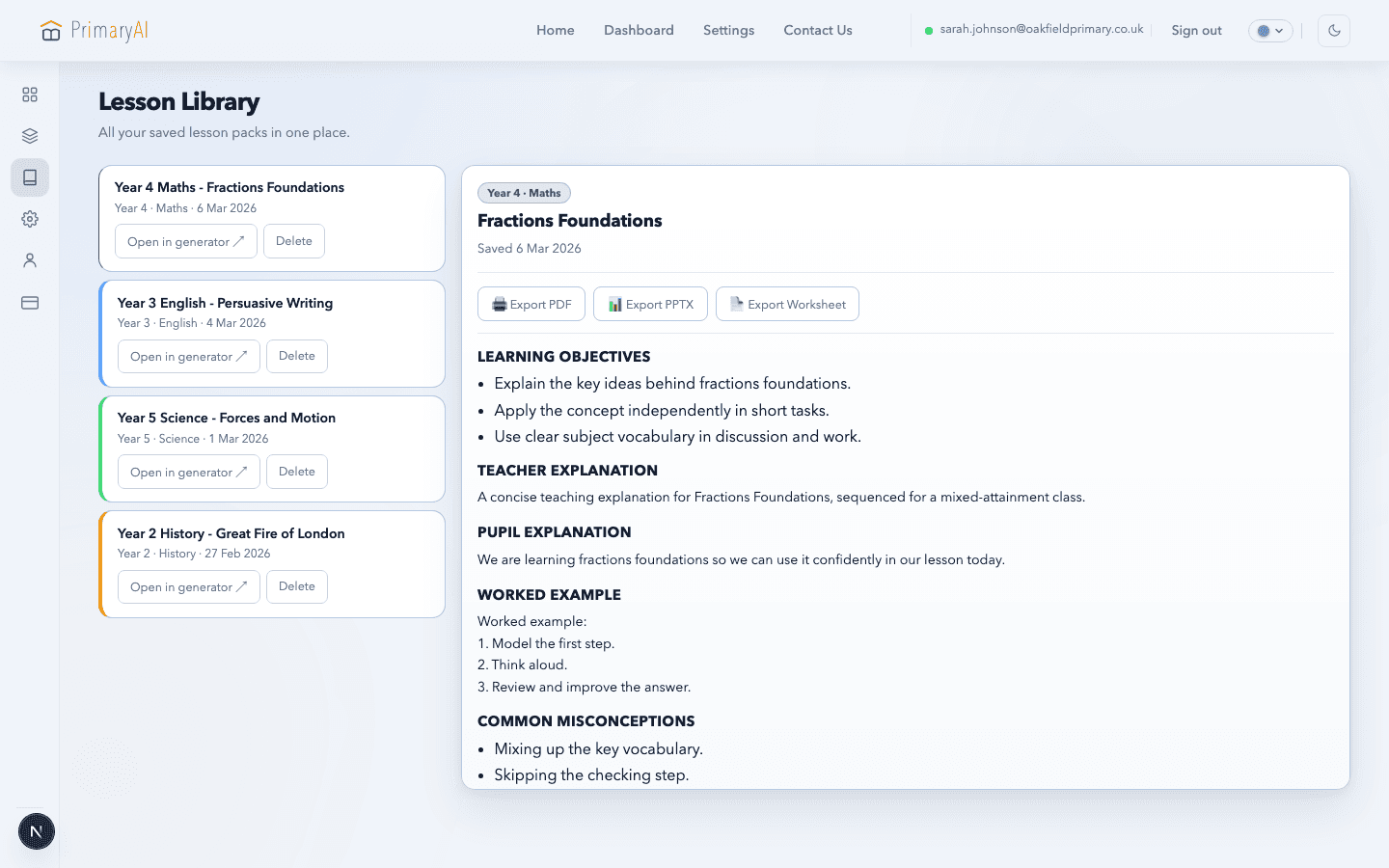
The Library holds everything you have saved or uploaded — lesson packs, documents, and notes. Use it as your permanent teaching resource store, organised into folders that match how you actually work.
- Organise with folders: keep long-term curriculum packs separate from in-the-moment resources.
- Upload your own lesson files when you already have a finished resource you want in the timetable.
- Notes appear in the library alongside packs and documents so you can keep related material together.
- Open any resource to preview it, move it to a folder, or attach it to a schedule event.
Section 5
📝 Notes and lesson annotations
Notes gives you a distraction-free space to capture ideas, reflections, and planning thoughts. Notes can be standalone, or attached directly to a lesson pack or schedule event — keeping context where it belongs.
- Paste images directly into notes to embed them inline — useful for adding diagrams, photos of student work, or resource screenshots.
- Attach a note to a lesson pack to keep your planning thoughts alongside the resource.
- Use the pin feature to keep important notes at the top of your list.
- Notes are searchable and stored in your library so you can find them alongside lesson packs and documents.
- The yellow writing area is designed to be easy on the eyes during longer planning sessions.

Section 6
📱 Mobile access and quick checks
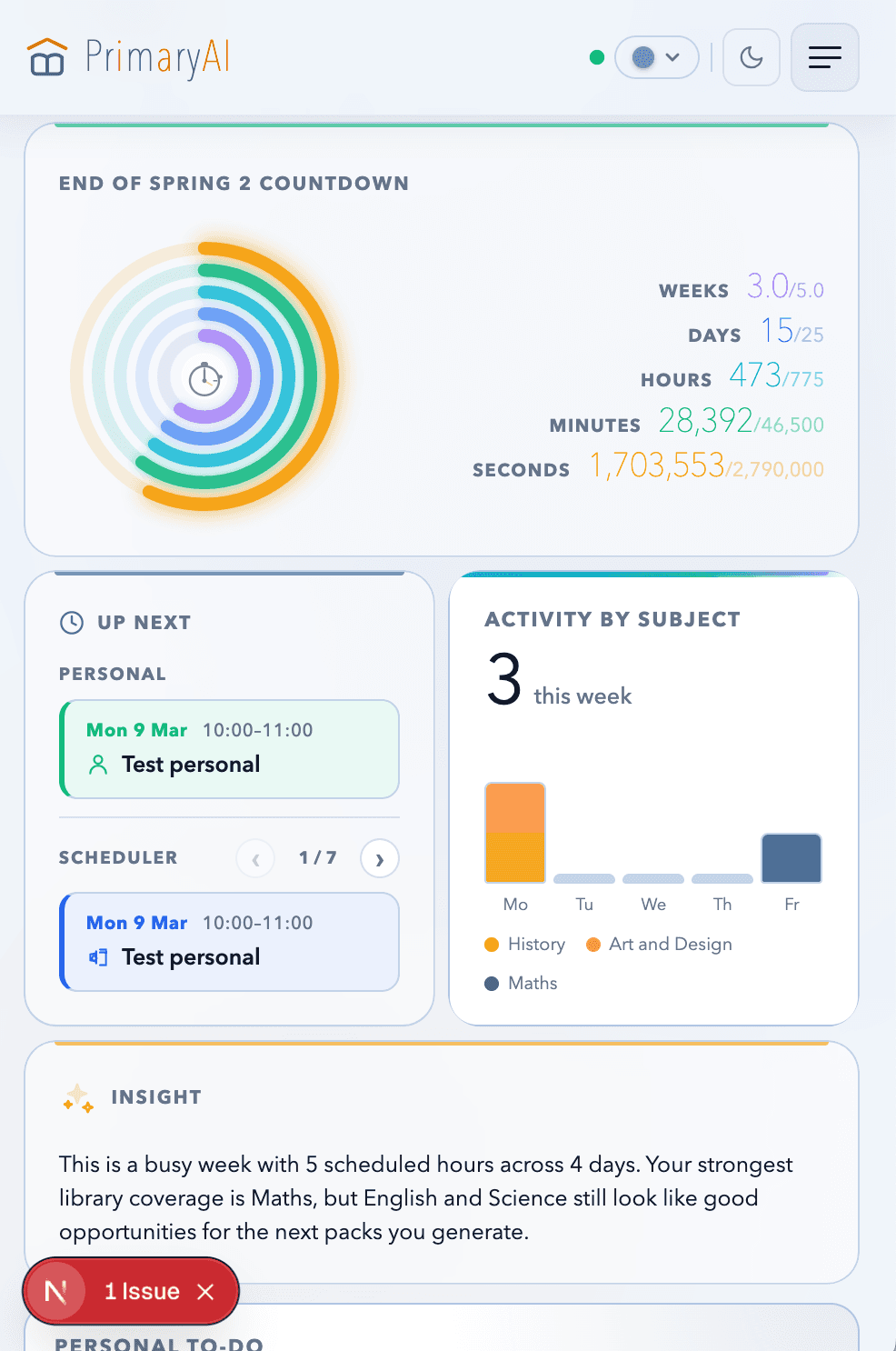
PrimaryAI works on mobile for quick checks and lightweight updates. Use it to review your schedule, check a saved resource, or jot a quick note. Keep heavy generation and detailed review on desktop.
- Mobile is best for checking your day, reviewing what is coming up, and reading saved lesson packs.
- Quick notes work well on mobile — useful for capturing an observation or idea during the day.
- The bottom dock gives fast access to your most-used areas without needing to navigate menus.
Section 7
⚙️ Settings and class profile
Settings shape how useful the whole app becomes. A well-completed class profile means lesson packs, AI planning suggestions, and scheduling tools all reflect your actual teaching context.
- Complete your year group, class notes, attainment split, and any SEND or EAL context before relying on generation.
- Keep attainment percentages current — they directly affect how differentiated activities are calibrated.
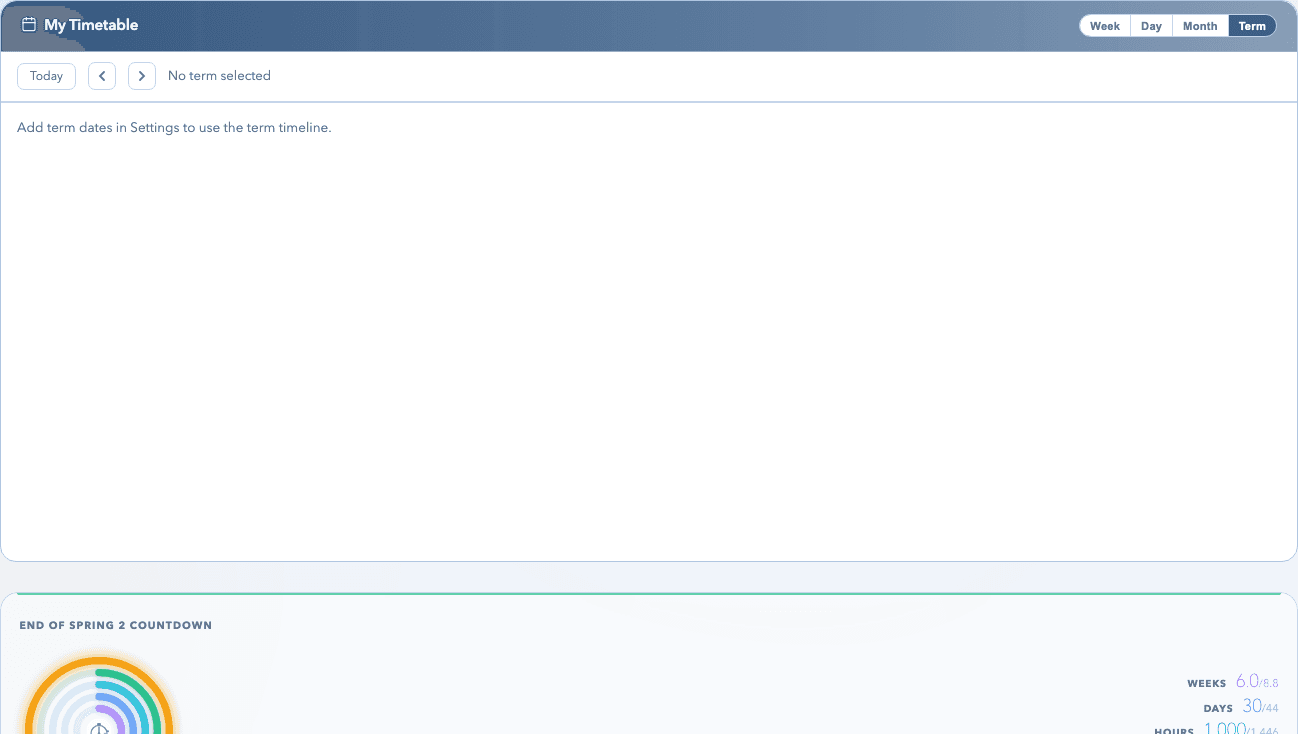
- Add your term dates so countdowns, planning views, and schedule generation stay accurate.
- Connect Google Calendar or Outlook if you want to see school events alongside your generated timetable.
Best-practice tips
Need help next?
If you want to get started immediately, create an account and begin with your profile setup. Read the FAQ for quick answers to common questions, or contact us if you need support or want to discuss rollout in your school.